How to secure your home network: a guide to blocking unwanted devices and strengthening Wi-Fi safety
A practical guide on identifying unknown connections to your home router, verifying MAC-addresses, and updating encryption protocols to prevent unauthorized access.
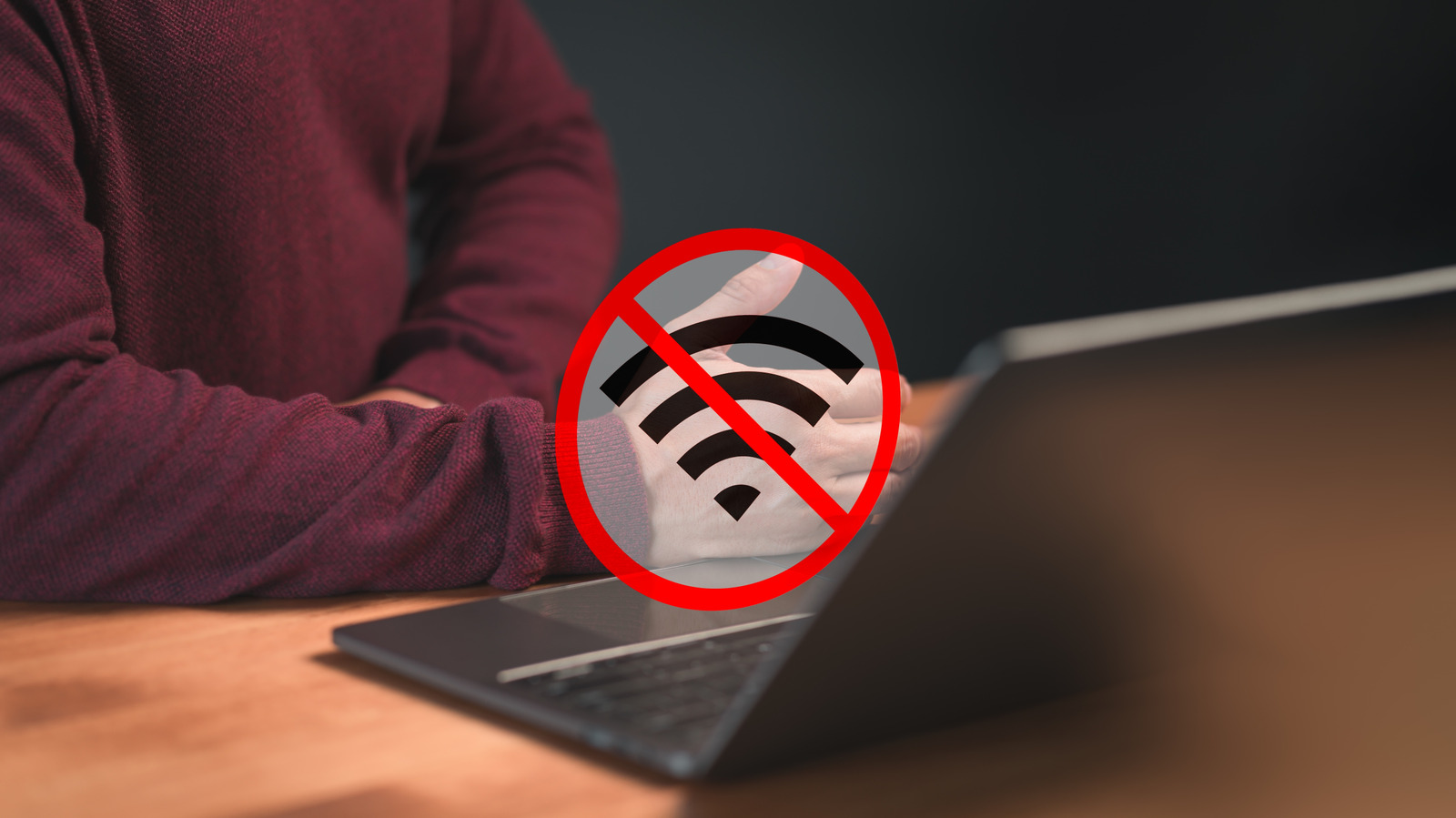 🛡️Cyber
Photo: Engadget
Key points
- Verify MAC addresses before blocking devices in your router settings
- Promptly change both your Wi-Fi password and router administrator password if unauthorized connections appear
- Use modern WPA2 or WPA3 encryption standards and set up a separate guest network for visitors
Noticing an unfamiliar device connected to your home network can be an unsettling experience. Modern routers and companion apps frequently identify connecting gadgets merely as a string of random characters or simply as "unknown," largely due to privacy features built into modern mobile operating systems. The first step toward restoring order involves reviewing the list of connected, recently connected, and unknown devices through your router's mobile app or web interface using your administrative credentials.
Identifying and blocking unauthorized gadgets
Before blocking any suspicious equipment, you should carefully verify its unique identifier. This is done by checking the device's MAC address, which can be found within the settings of most Android and iOS smartphones. By matching these network identifiers against the list provided in your router's interface under sections like "Access Control" or "MAC Filtering," you can safely banish unwanted hardware without accidentally locking your own devices out of the network.
However, simply blocking a rogue device only solves the symptom temporarily, as a strange connection strongly indicates that someone has obtained your Wi-Fi password. You need to change your network password promptly to something exceptionally unique and secure. Experts also emphasize the importance of updating the administrator password that protects your router's settings, as default or weak administrative credentials leave your entire network vulnerable to compromise.
Additional safeguards include upgrading your wireless security settings to use WPA3 Personal or WPA2 Personal, while ensuring that legacy protocols like WEP are disabled. It is equally crucial to keep your router's firmware up to date with automatic updates enabled, and to set up a dedicated guest network with a unique password for visitors to prevent them from accessing your primary devices.
Source Engadget — engadget.com/2318874/how-to-block-device-home-network/ ↗
Read next
 📈Business
Trump Administration Pressures Intel and Nvidia, Sparking Concerns Over State Control
Newly unsealed court documents reveal aggressive government pressure on Intel and Nvidia, shifting tech policy toward direct state stakes.
 🚀Space
Ukraine braces for another difficult winter amid ongoing attacks on energy infrastructure
Ukrainians are preparing for a harsh winter as continuous strikes on energy facilities and rising food prices strain households.
 🔬Science
Biomolecular analysis reveals centuries-old embalming recipes for Egyptian crocodile mummies
A study of ancient Egyptian crocodile mummies shows that embalmers used the exact same beeswax and pine resin recipe centuries apart at a single site.
 💻Tech
Astronomers Witness Rare Stellar Merger as Red Giant Devours Companion Star
An international team of researchers used advanced ground- and space-based telescopes to document a rare cosmic event where a massive red giant swallowed its smaller stel…
 🌍World
NATO Fighter Jets Scrambled After Drone Enters Latvian Airspace
Latvian armed forces deployed Alliance aircraft and interceptors following a brief border breach by an unidentified unmanned aerial vehicle.
 🔬Science
Bacterial colonies turn themselves inside out when oxygen is scarce
An international research team discovered that Neisseria gonorrhoeae bacteria respond to oxygen depletion in the colony's center by reducing cell adhesion, triggering a p…